When creating an On-Report card, you can select a report type that can be used to categorise the card. Before this can be used, On-Report types need to be set up in your school.
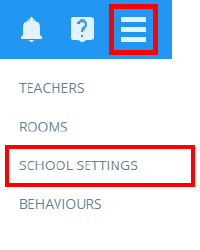
To set up a new On-Report type, click on the three lines menu in the top right hand corner of Class Charts and select Schools settings from the list of available options.
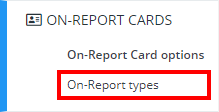
Next, click on On-Report Cards from the left hand menu and select On-Report Card types.
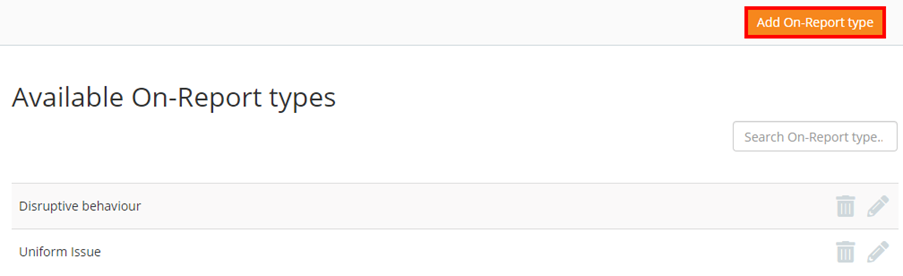
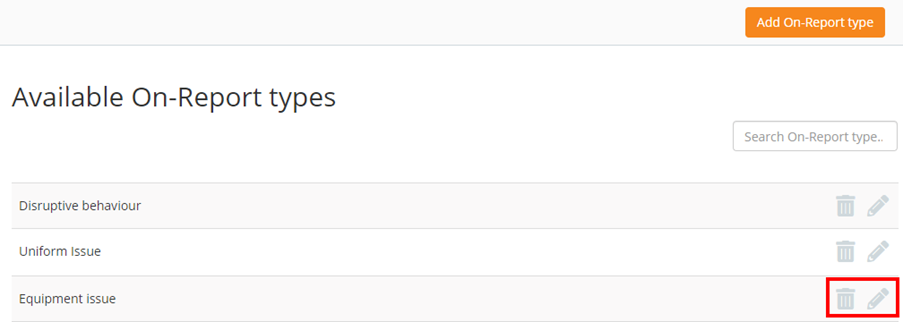
You will be presented with a list of On-Report types that have been set up in your School’s Class Charts account. Click on the Add On-Report type button.
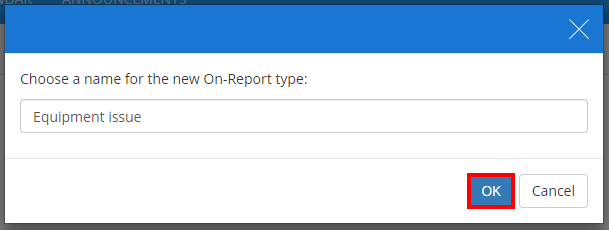
Next, enter the name of your new On-Report type into the field provided. Click on the OK button to continue.
The newly created On-Report type will now be present in the list. The On-Report type can then be edited or deleted using the pencil or bin icons respectively.
Was this article helpful?
That’s Great!
Thank you for your feedback
Sorry! We couldn't be helpful
Thank you for your feedback
Feedback sent
We appreciate your effort and will try to fix the article