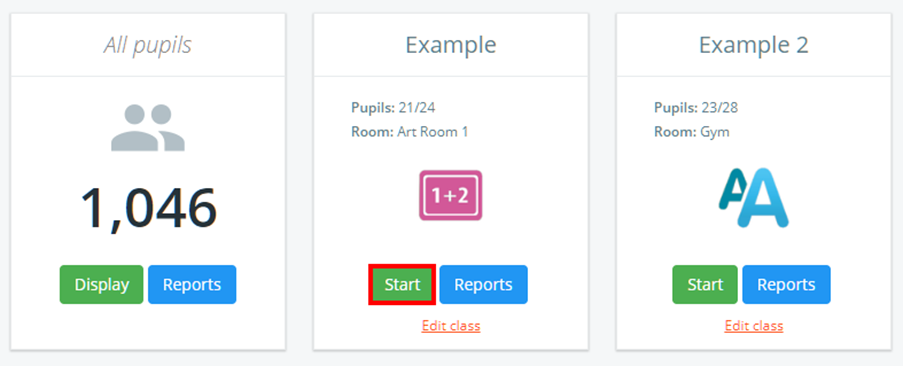
To record a wellbeing submission in class, click on the Classes tab along the top of the page and click on the Start class button for the class of your choice.

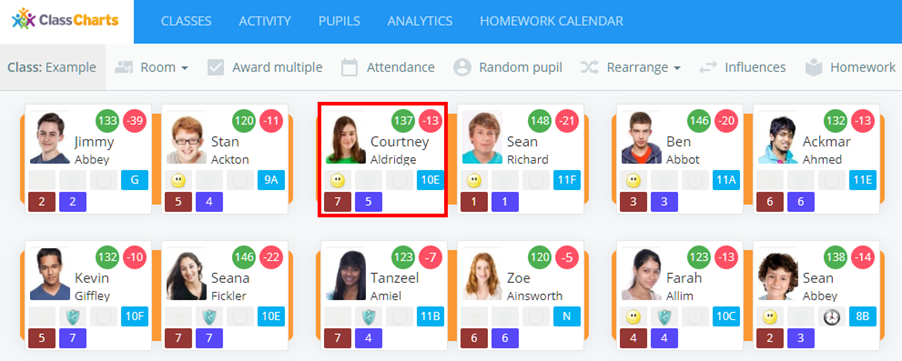
You will be presented with the class view page for your selected lesson, where pupils are displayed in their current seats. Click on the pupil of your choice to continue.
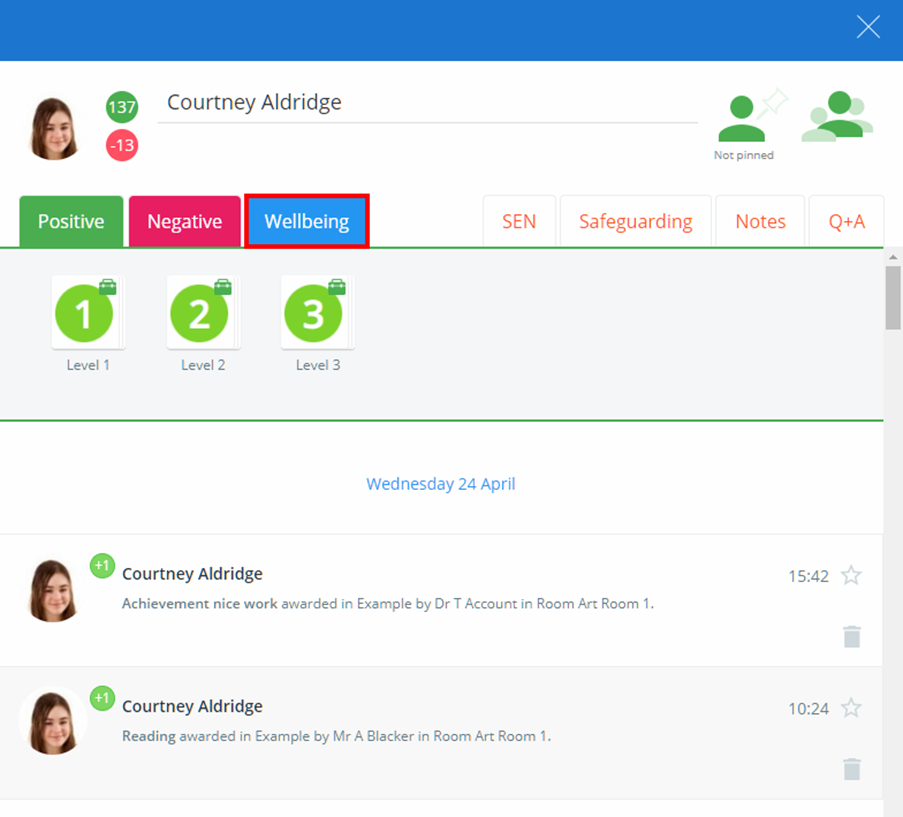
The pupil sidebar will appear with your school’s available behaviours present. Click on the Wellbeing tab to begin issuing a wellbeing submission.
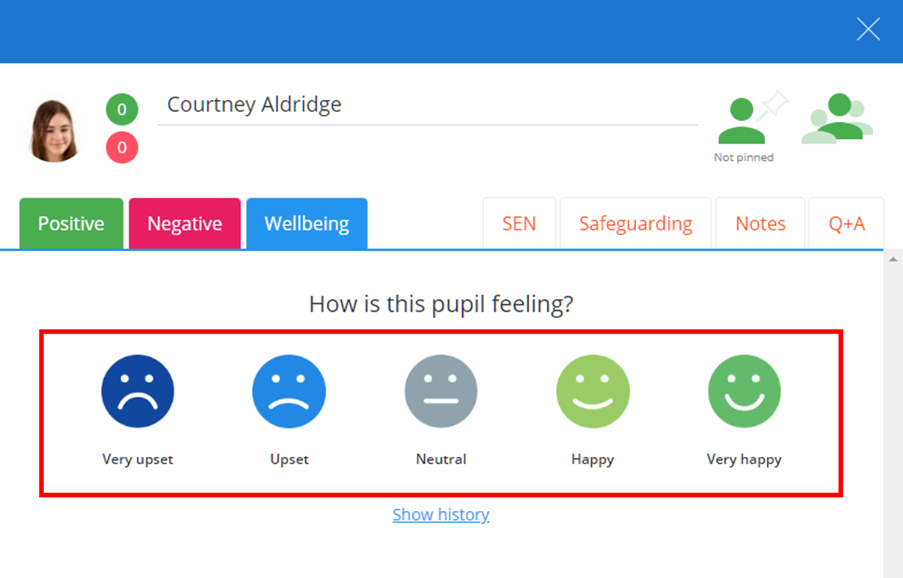
You will be presented with five face icons, which represent a range of emotions. Click on the face icon that most accurately describes the pupil’s emotions.
Next, add a description for the wellbeing submission. You can also include a tracker if your school has set them up. Trackers can be used to categorise why a pupil is feeling the chosen emotion.
Click on the Save button once you are finished.
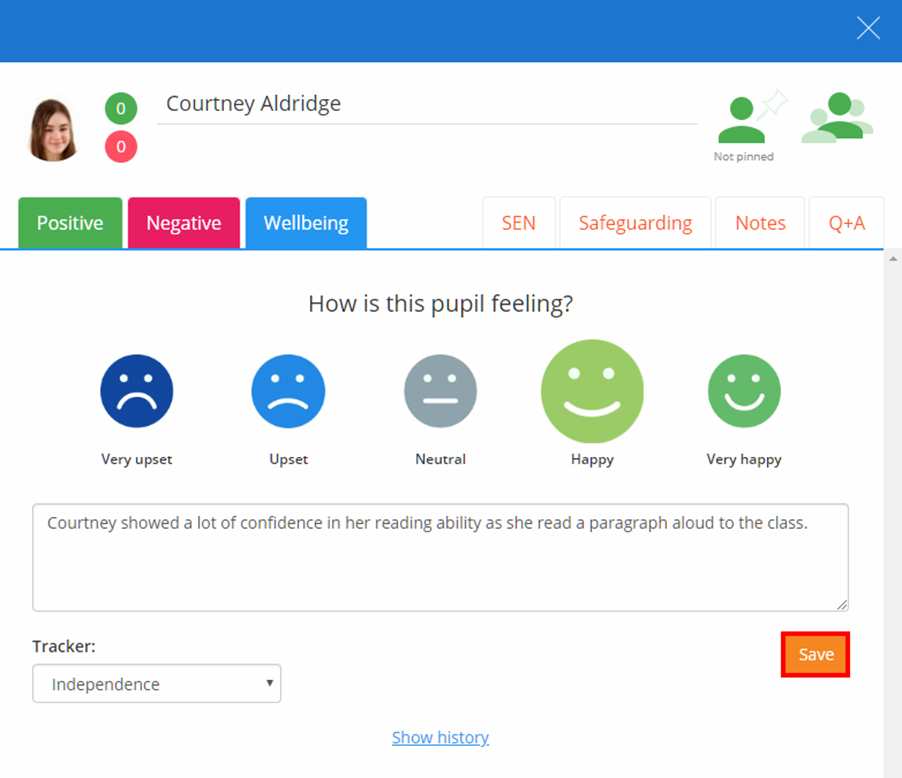
The left hand side of the pupil sidebar will flash blue, indicating that the wellbeing submission is complete.
Displaying wellbeing submission history
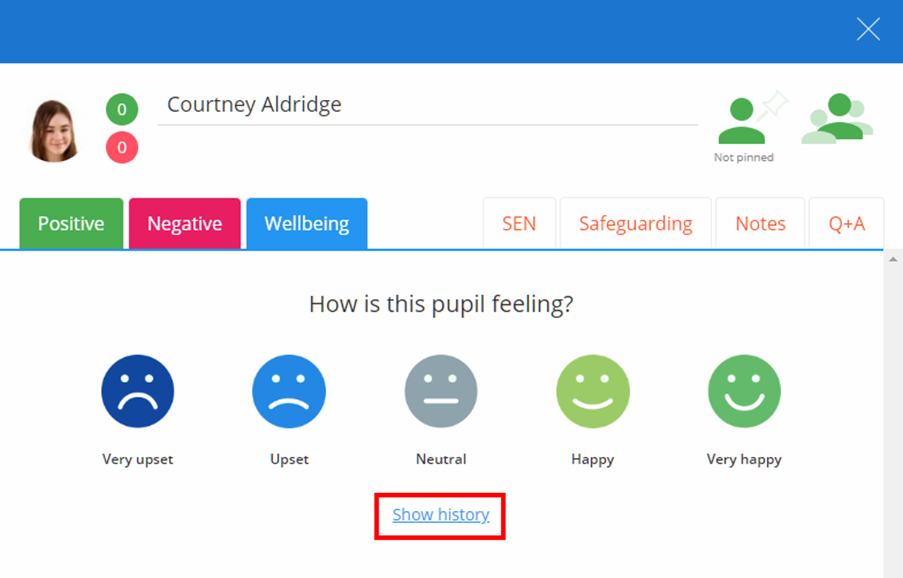
To view a pupil’s wellbeing submission history, click on the Show history button below the five faces.
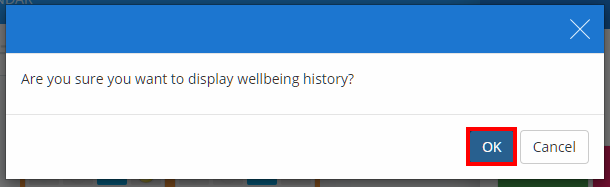
A popup confirmation will appear. Click on the OK button.
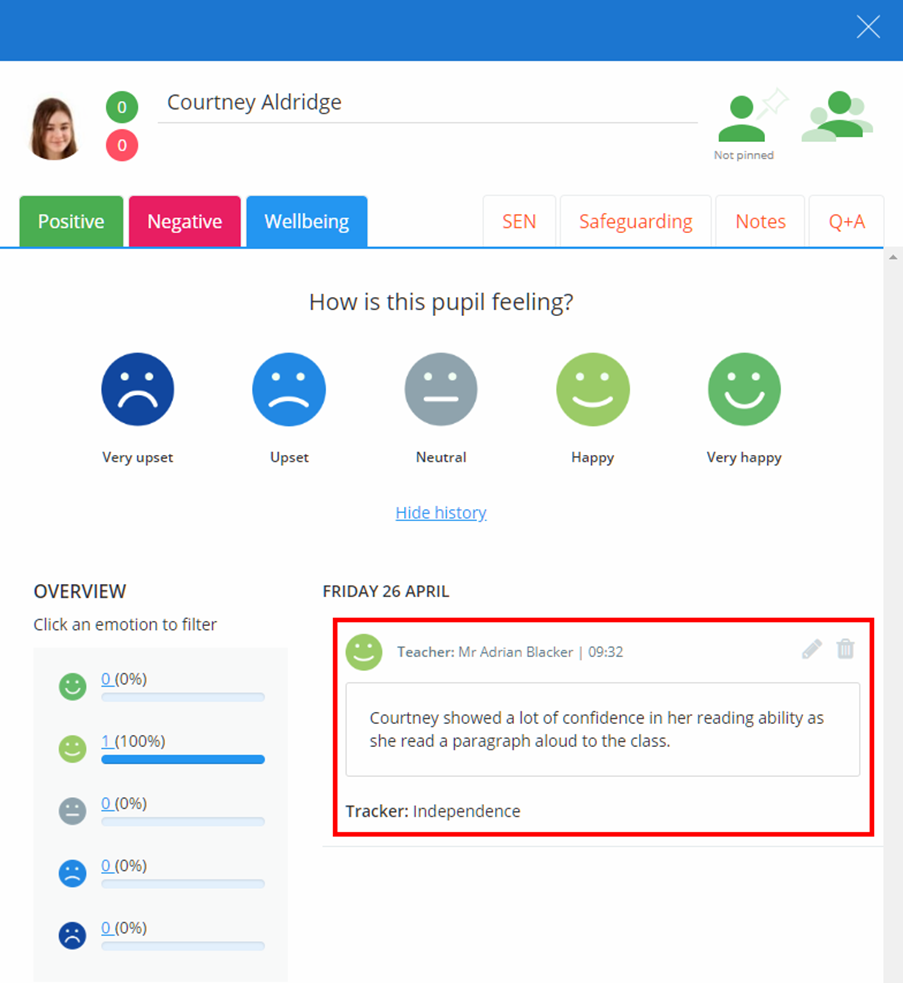
The pupil’s wellbeing submissions history will now be displayed in the wellbeing tab. Each wellbeing submission shows who issued the submission, when it was issued, a description of the wellbeing submission (if set) and the tracker used.
Filtering the wellbeing submission history
To filter the displayed results in the wellbeing submission history, click on the face icons to the left of the feed.
The results will be filtered by the emotion of your choice.
Editing a wellbeing submission
To edit a wellbeing submission, click on the pencil icon for the submission of your choice.
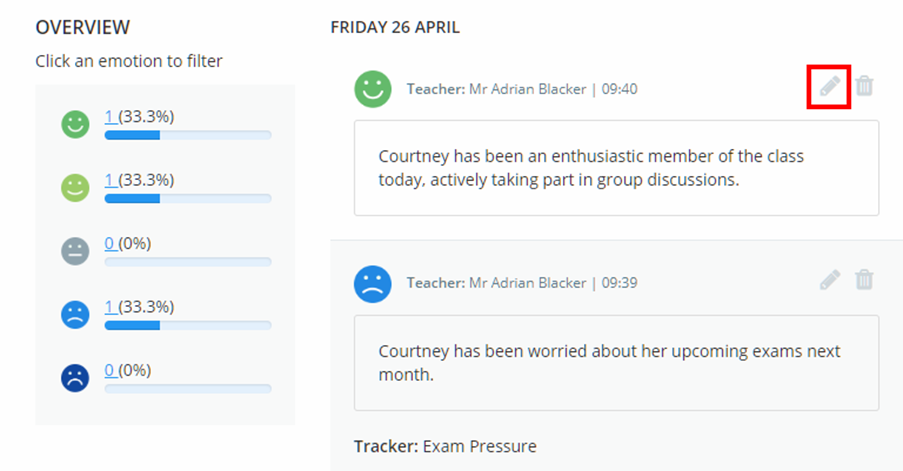
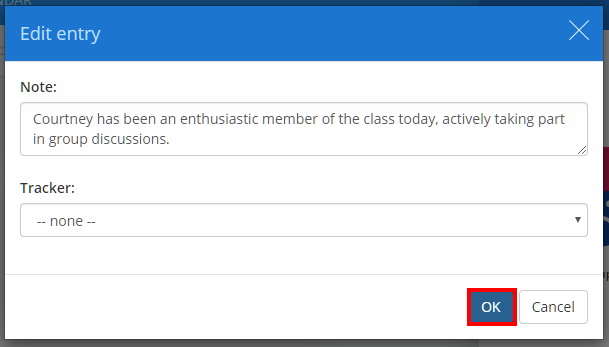
The Edit entry popup will appear, allowing you to make changes to the wellbeing submission.
Deleting a wellbeing submission
To delete a wellbeing submission, click on the bin icon for the submission of your choice.
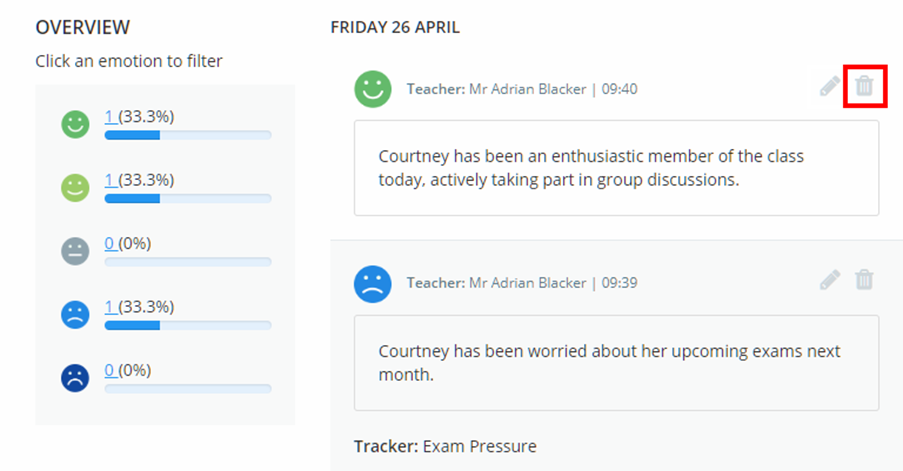
You will be asked to confirm your choice. Click on the OK button to finish deleting the wellbeing submission.
Was this article helpful?
That’s Great!
Thank you for your feedback
Sorry! We couldn't be helpful
Thank you for your feedback
Feedback sent
We appreciate your effort and will try to fix the article