To view a pupil’s wellbeing graph in Class Charts, click on the Pupils tab at the top of the page.

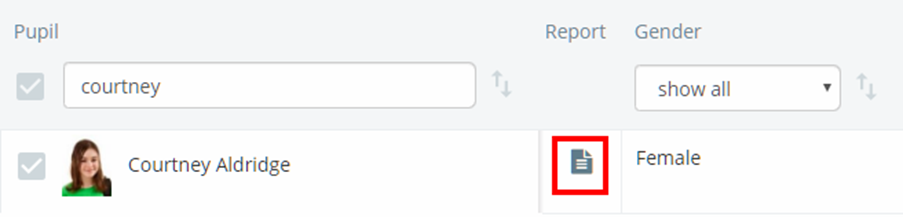
Next, locate your chosen pupil using the search bar and filters. Once found, click on the page icon for your chosen pupil.
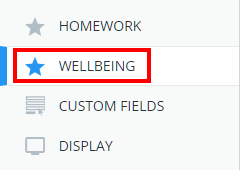
You will be presented with the pupil’s individual report. Either scroll down to the Wellbeing section of the report or select Wellbeing from the left hand navigation menu.
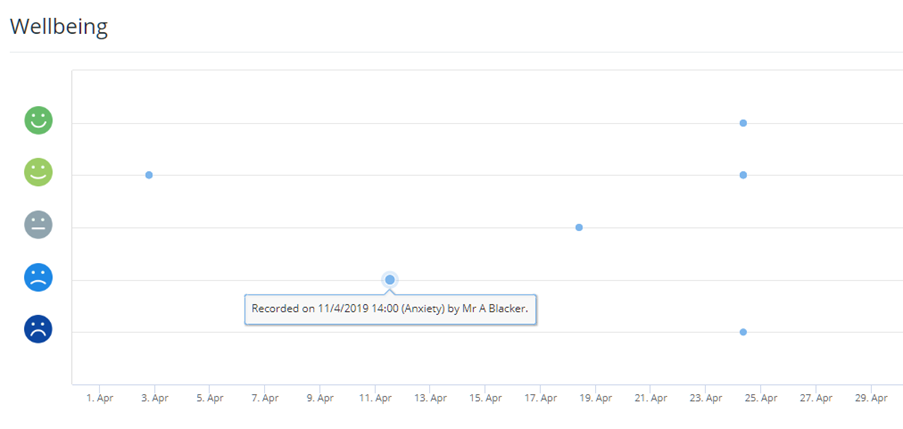
The pupil’s individual wellbeing submissions will appear as points on the graph. To view a wellbeing submission in more detail, mouse over the point to display its description.
Was this article helpful?
That’s Great!
Thank you for your feedback
Sorry! We couldn't be helpful
Thank you for your feedback
Feedback sent
We appreciate your effort and will try to fix the article