As detentions are issued in your school, staff members will need to ensure that detention attendance is correctly logged and managed.
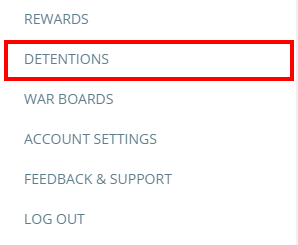
To mark a detention as attended, click on the three lines menu in the top right hand corner of the page and select Detentions from the list of options.
You will be presented with the detentions manager for your school, where detentions are listed as tiles for each pupil.
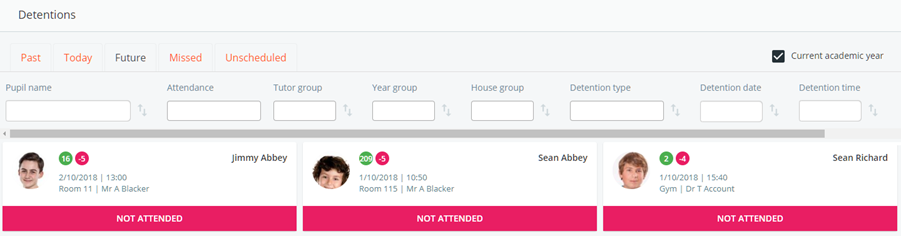
Click on the bottom section of a pupil’s detention tile until Attended is the displayed detention status.
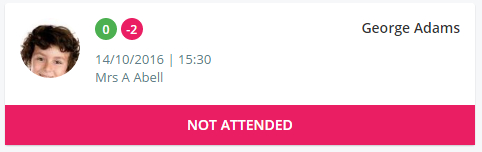
To revert this change, click on the bottom section of the detention tile until the detention status of your choice is displayed.
Marking detentions as attended through the Activity feed
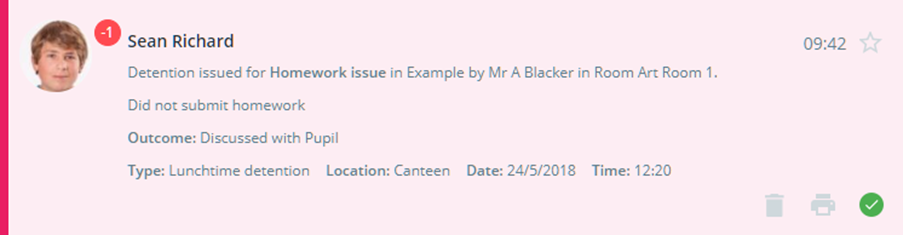
Alternatively you can mark detentions as attended directly from the Activity feed. To do this, click on the Activity tab at the top of the page.

Once you’ve located a detention in the activity feed, click on the tick icon to mark the detention as attended.
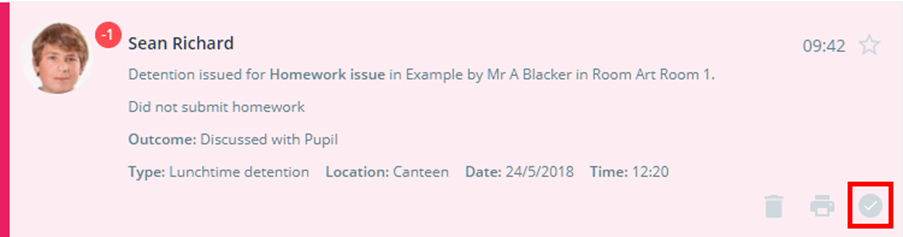
The tick will turn green to indicate that the detention has been attended by the pupil. This will also update the pupil’s detention tile in the detentions manager.
Was this article helpful?
That’s Great!
Thank you for your feedback
Sorry! We couldn't be helpful
Thank you for your feedback
Feedback sent
We appreciate your effort and will try to fix the article