When a detention is arranged for a pupil, staff members may wish to provide pupils with a detention slip so that they know when to attend their detention.
There are multiple methods of creating printable detention slips in Class Charts, which are explained below:
Creating a detention slip when issuing a detention
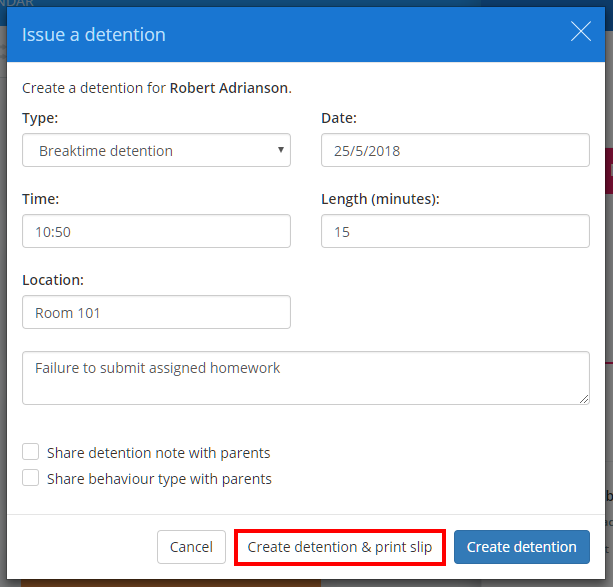
If you award a behaviour to a pupil that also issues a detention, you can create a printable detention slip as the detention is issued.
To do this, click on the Create detention & print slip button after entering the detention details into the Issue a detention popup.
Creating a detention slip from the activity feed
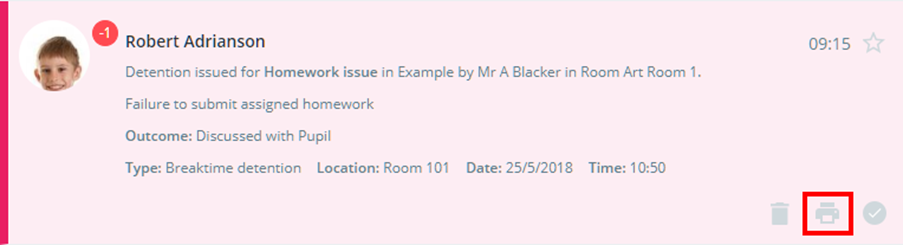
Detention slips can also be generated directly from your school’s activity feed. Click on the Activity tab at the top of the page.

Next, search for the detention you wish to create a detention slip for. It may be worth filtering the activity feed by Detentions only, so that only detention activity is shown.

Once you’ve located your chosen detention, click on the printer icon in the bottom right hand corner to generate a pdf detention slip.
Creating a detention slip from the detentions manager
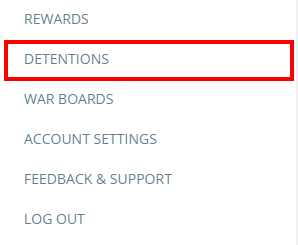
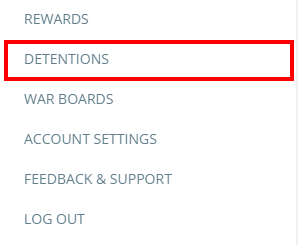
Finally, detention slips can also be created from your school’s detention manager. Click on the three lines menu in the top right hand corner of the page and select Detentions from the list of available options.
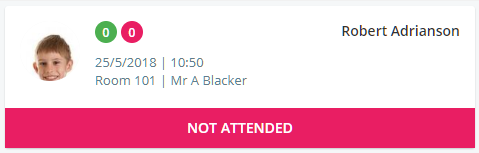
Locate the detention of your choice and click on the pupil’s detention tile.
The detention sidebar will appear. Click on the printer icon in the top right hand corner of the sidebar to generate the detention slip.
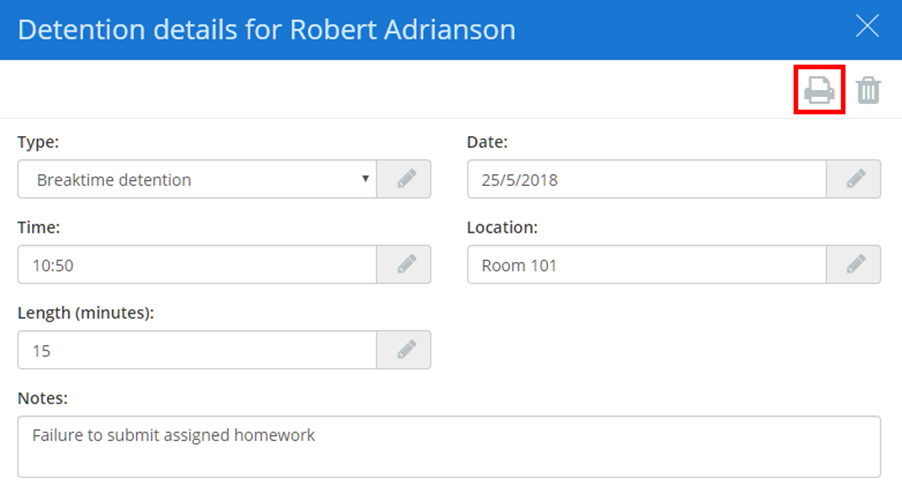
Using any of these methods will generate a printable PDF version of the detention slip, similar to the one shown below.
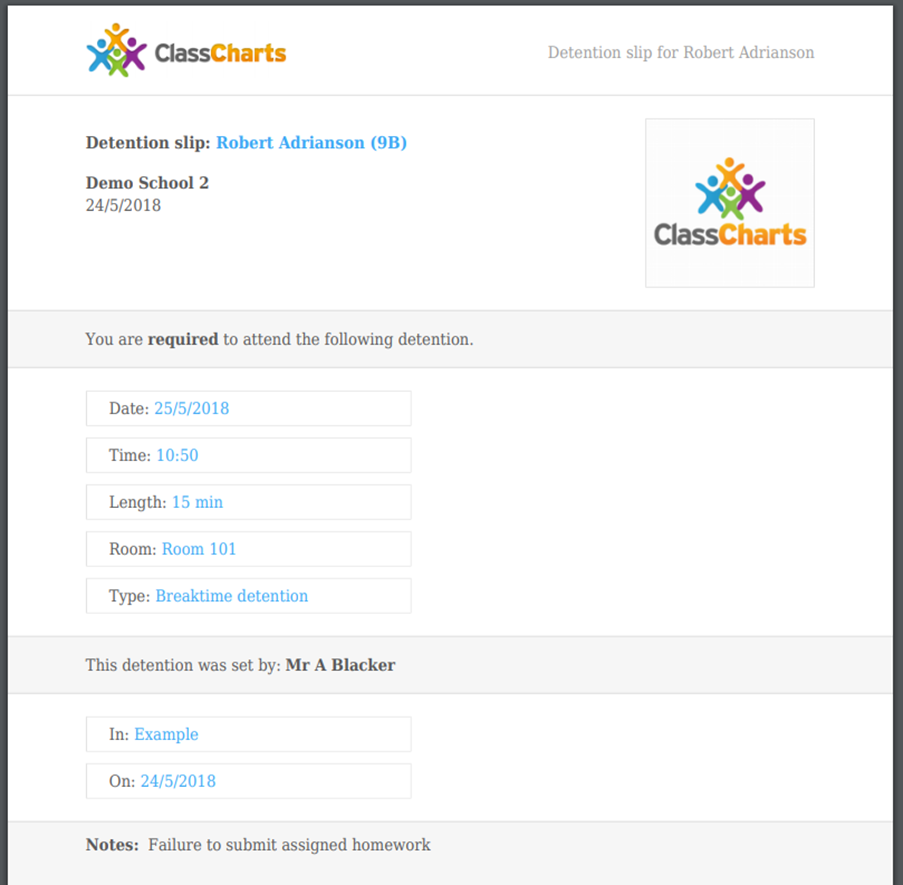
Creating multiple detention slips from the detentions manager
You can also create multiple detention slips simultaneously through the detentions manager.
Click on the three lines menu in the top right hand corner of the page and select Detentions from the list of available options.
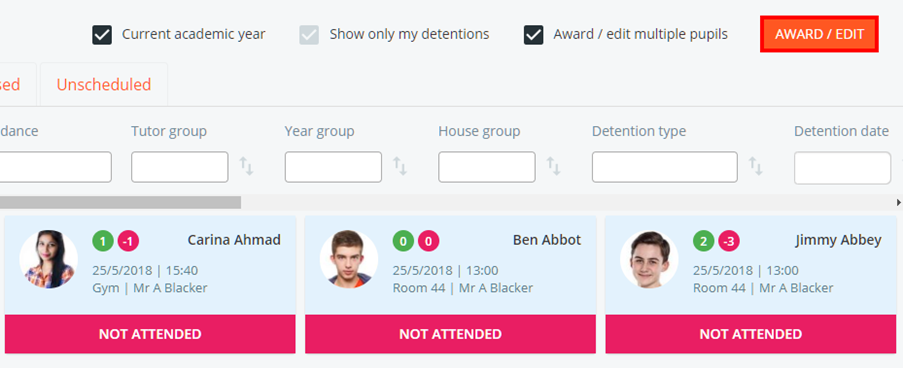
Locate the detentions you wish to print detention slips for and tick the Award / edit multiple pupils check box.
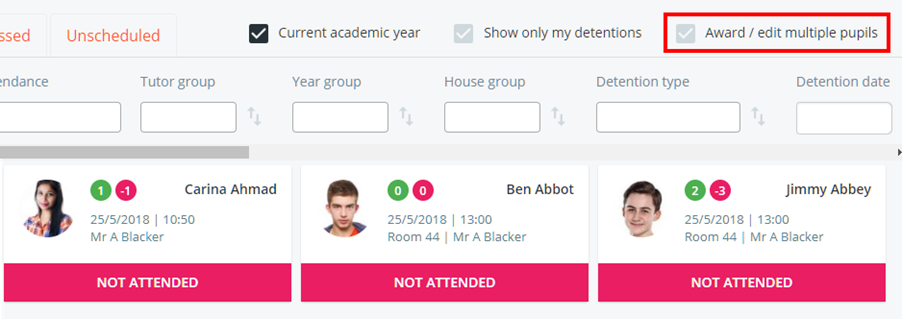
Next, click on the detentions and then click on the Award / Edit button.
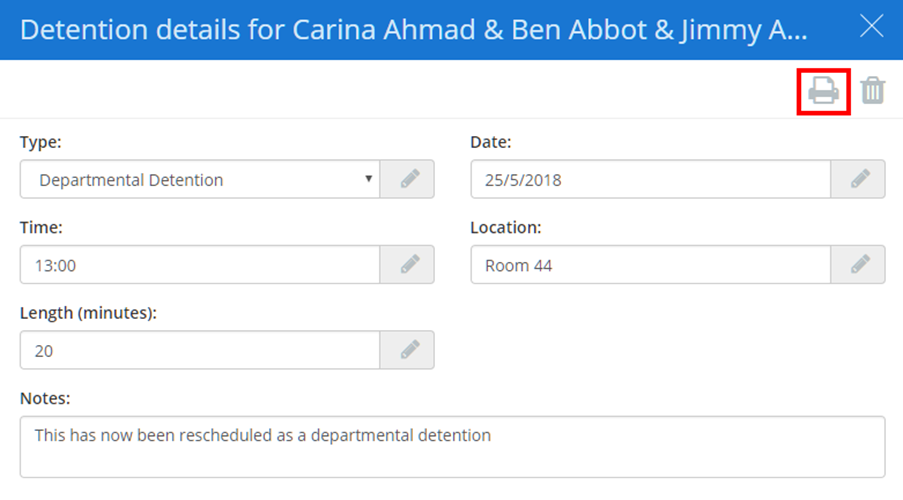
The detention sidebar will appear. Click on the printer icon to generate a pdf that contains a detention slip for each selected detention.
Was this article helpful?
That’s Great!
Thank you for your feedback
Sorry! We couldn't be helpful
Thank you for your feedback
Feedback sent
We appreciate your effort and will try to fix the article