Once a note has been created for a pupil, you may want to return to it in order to change its date.
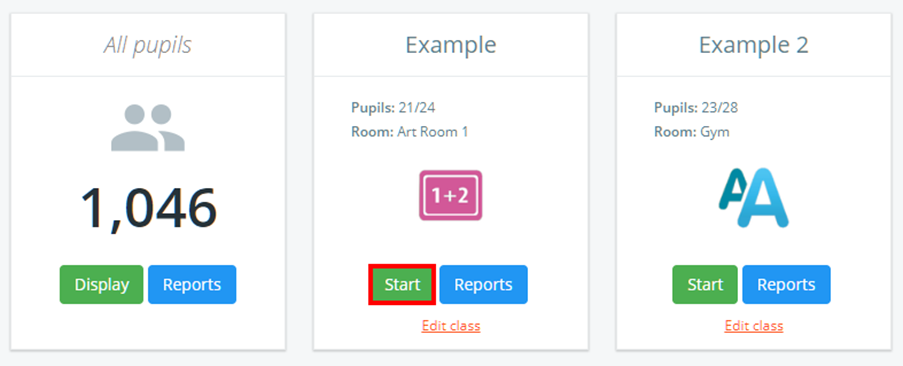
To change the date of an existing pupil note, click on the Classes tab along the top of the page and start the class of your choice by clicking on the Start button.

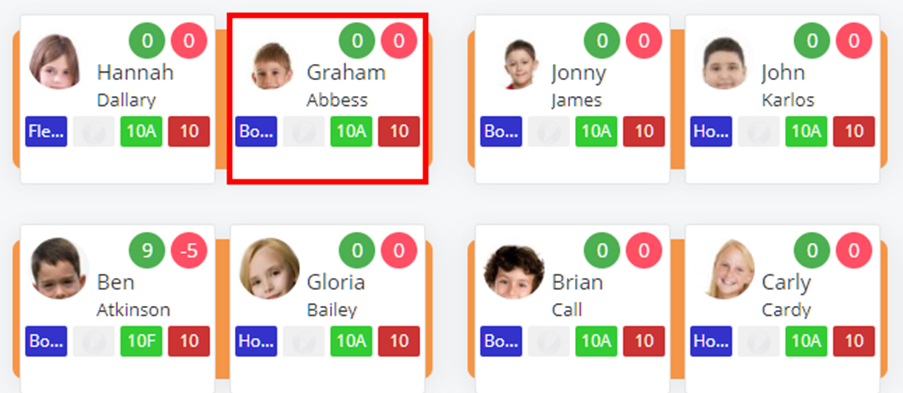
Next, choose a pupil by clicking on their pupil tile.
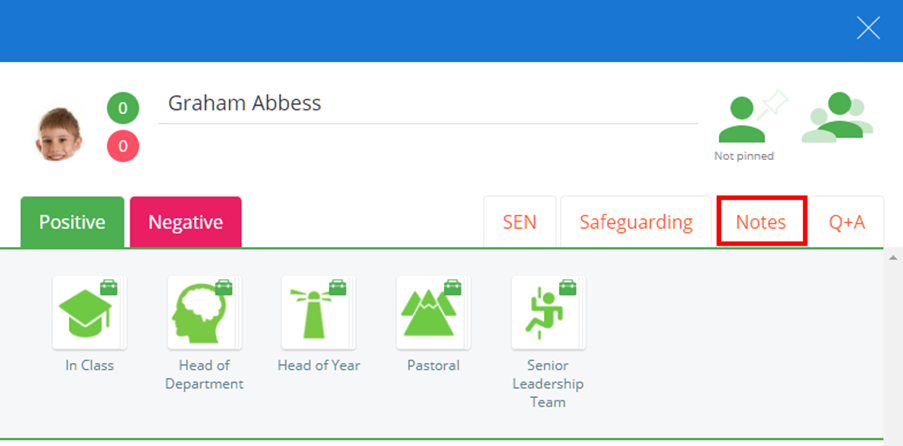
The pupil sidebar will appear. Click on the Notes tab to view a list of notes that have been written about the selected pupil.
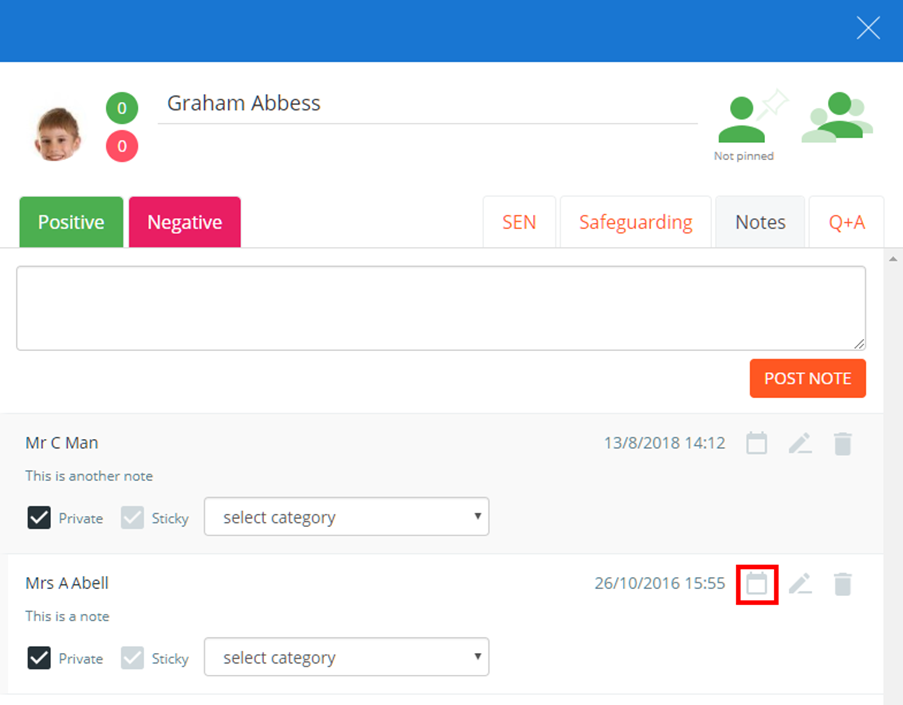
To change the date of a displayed pupil note, click on the calendar icon for the note of your choice.
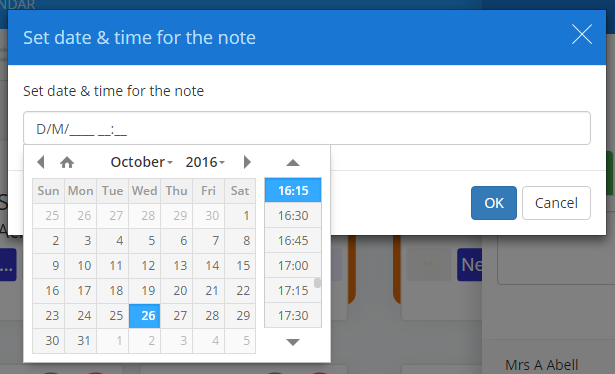
The Set date & time popup will appear. Select a new date and timestamp for the note and click on the OK button in order to save your changes.
The pupil note will be now updated with the newly selected date.

Was this article helpful?
That’s Great!
Thank you for your feedback
Sorry! We couldn't be helpful
Thank you for your feedback
Feedback sent
We appreciate your effort and will try to fix the article