There may be times when staff members would like to issue a behaviour retroactively instead of the current date and time.
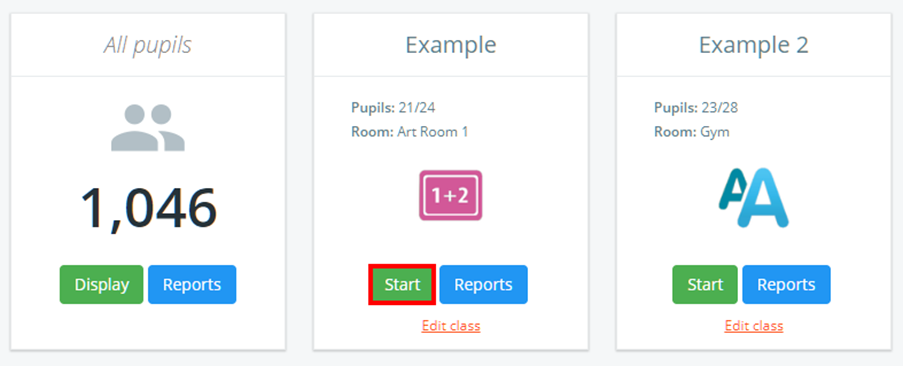
To change the date of a behaviour, click on the Classes tab along the top of the page and start the class of your choice by clicking on the Start button.

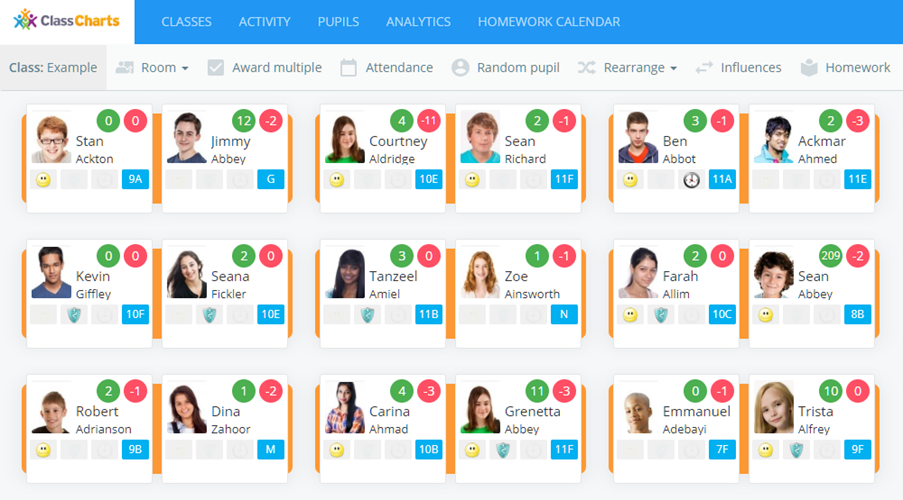
You will be presented with the class view page for your selected lesson, where pupils are displayed in their correct seats. Select a pupil by clicking on their pupil tile.
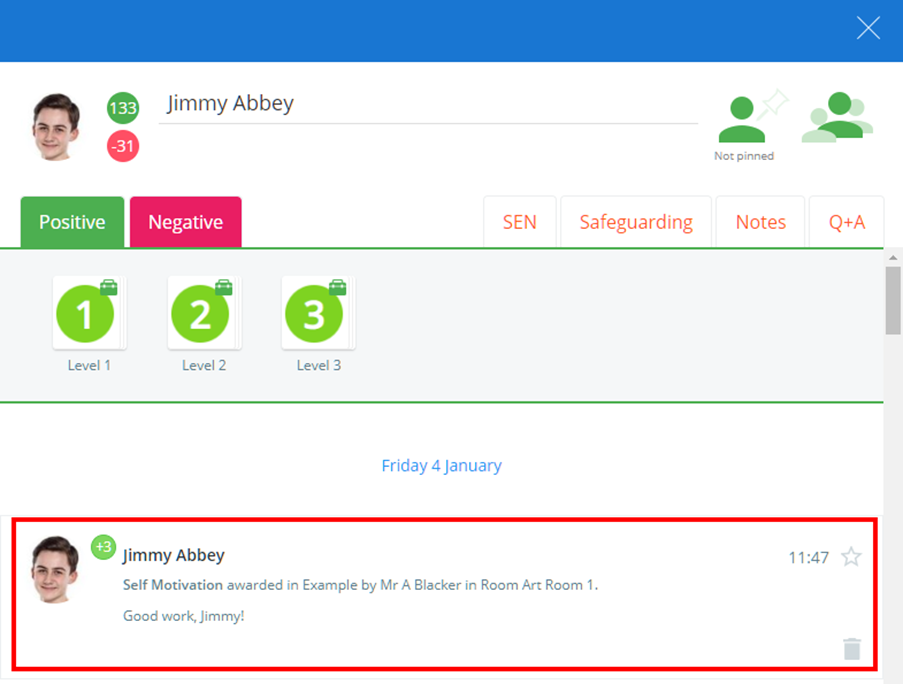
The pupil sidebar will appear. Click on a behaviour record from the pupil’s activity feed.
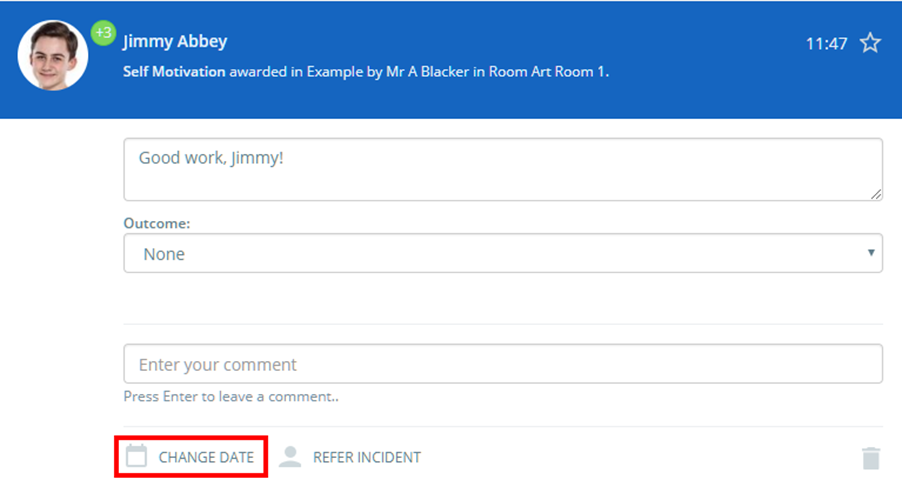
Next, click on the Change date button.
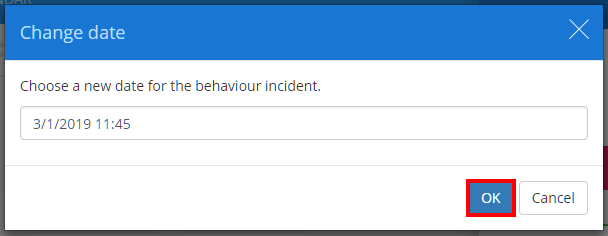
Select a new date and time and click on the OK button.
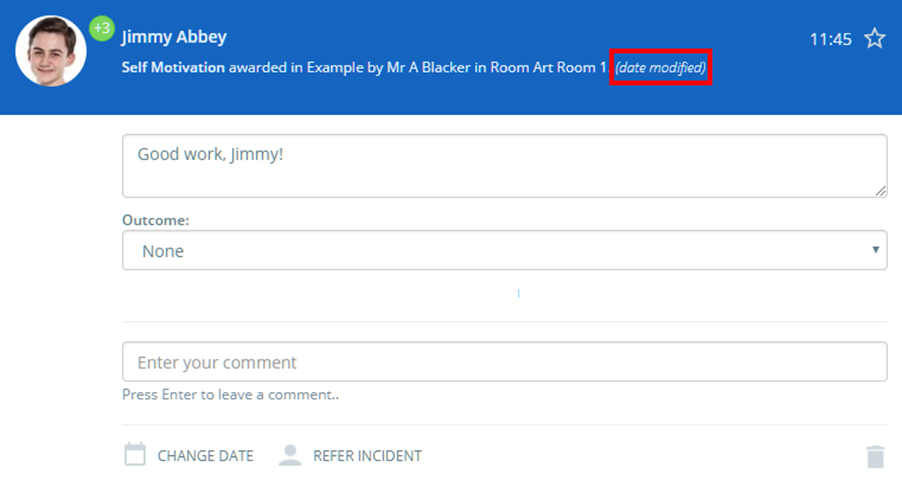
The behaviour will now show a date modified label to show that the date has been successfully changed. To see the new date, mouse over the behaviour record.
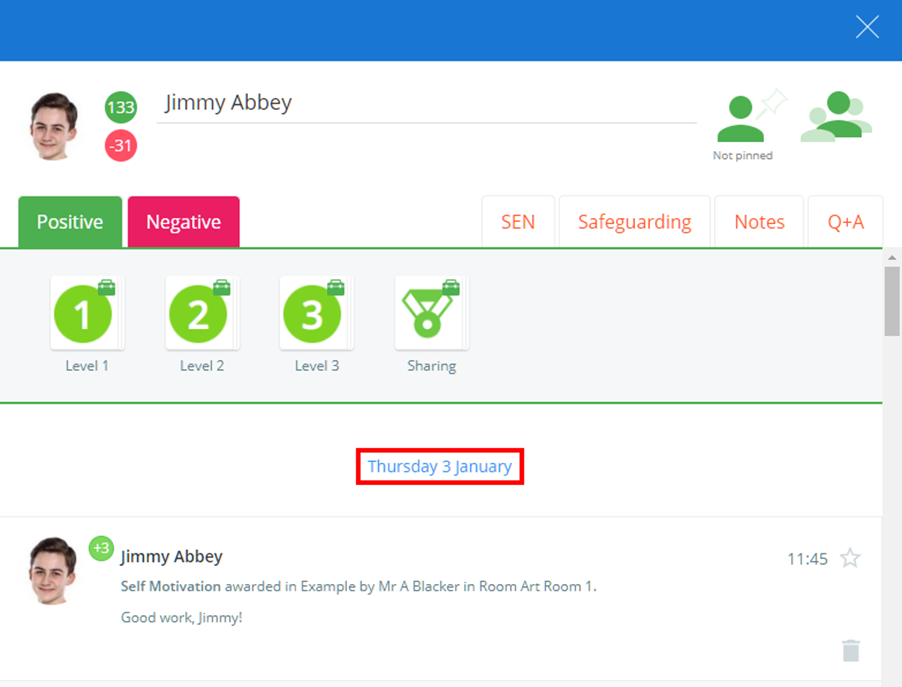
The behaviour record will now appear under the changed date in their activity feed.
Was this article helpful?
That’s Great!
Thank you for your feedback
Sorry! We couldn't be helpful
Thank you for your feedback
Feedback sent
We appreciate your effort and will try to fix the article